You click a PDF and, instead of a document, your browser shows the message "Failed to load PDF document." No pages, no text, and no hint about what went wrong. Often the same file opens fine on someone else's computer, which makes it more confusing.
That exact wording is what Chrome's built-in viewer shows. Other browsers and apps may phrase the problem differently, but the causes tend to be the same: the file is damaged or incomplete, the browser's viewer or an extension is getting in the way, or the file isn't quite the PDF it claims to be. This guide goes through the fixes from quickest to most involved.
Quick fix: Open the same file somewhere other than the browser tab that failed. If it opens, the file is fine and the browser was the problem. A viewer that runs in your browser and needs no install is a quick test.
Start here: what are you seeing?
Match your situation to the fix most likely to help.
- The file is 0 KB, or much smaller than expected → The download did not finish. Go to Fix 1.
- It fails in one browser but opens in another → The browser or an extension is the problem. Go to Fixes 2, 3 and 4.
- The file has a strange name or a tiny size → It may not be a real PDF. Go to Fix 5.
- It asks for a password, or the viewer says it may be password-protected → Go to Fix 6.
- It fails everywhere and the size looks normal → The file itself may be damaged. Go to Fixes 7 and 8.
Fix 1: Download the file again
How to recognise it: The file size in your Downloads folder is 0 KB, or far smaller than the sender said it would be. Interrupted downloads and dropped connections leave behind half a file that no viewer can read.
What to do: Delete the file and download it again from the original source. Stay on the page until the download finishes. If the PDF came as an email attachment, save the attachment to your device and open it from there instead of using the preview inside the email page, since previews are often more fragile than a full viewer.
Fix 2: Try another browser or app
How to recognise it: The error appears in one place only.
What to do: Open the file from your Downloads folder with a different browser or a desktop PDF app. You can also drag the file into an open browser window. The exact "Open with" wording differs by system and version, but the idea is the same: if a second viewer opens it, the file is not the problem.
Fix 3: Rule out a browser extension
How to recognise it: The PDF fails in your normal browser window but you suspect an extension, such as a PDF tool, download manager or security add-on, is taking over how PDFs are handled.
What to do: Open a private or incognito window and open the file there. Extensions are usually switched off in private windows unless you have allowed them. If the PDF loads, go back to your normal window and turn extensions off one at a time until you find the one responsible.
Fix 4: Update your browser
Older browser versions can stumble over files that newer ones handle without trouble, and a browser that has been open for days can simply get stuck. Look for the About or Help section in your browser's menu to check for updates, then restart the browser and try the file again. The menu names differ slightly between browsers and versions.
Fix 5: Check that it is a real PDF
How to recognise it: A file ending in .pdf is not always a PDF. A web page saved with the wrong extension, an expired download link that returned an error page, or a file that was renamed can all look the part in your folder, usually at a very small size.
What to do: Open the file in a plain text editor such as Notepad or TextEdit. A real PDF starts with the characters %PDF- followed by a version number. If you see web page code or an error message instead, you have the wrong file and need to get the real one again. If you think your security software replaced or blocked the download, ask the sender to share the file a different way, such as a shared link, rather than changing your security settings.
Fix 6: Open it in PDF Reader
PDFly's PDF Reader is a read-only viewer that runs locally in your browser, so the file is not sent anywhere. If the document opens there, the problem was your browser's built-in viewer, and you can read the file normally while you sort that out.
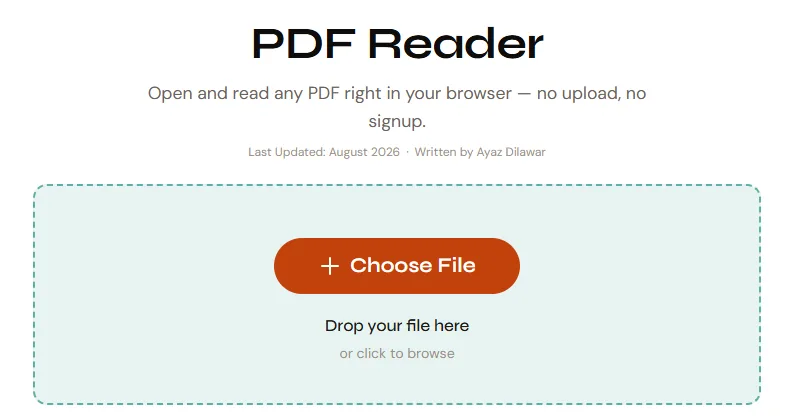
It does not open password-protected PDFs directly. If you know the password, run the file through Unlock PDF first; it removes protection only when you already have the password and does not bypass or crack anything. If it shows the message "Could not open this PDF. It may be corrupted or password-protected," the file is either locked or damaged, so check for a password and then move on to Fix 7.
Fix 7: Repair the file
If the file fails in every viewer and the size looks right, its internal structure is probably damaged. PDFly's Repair PDF runs locally in your browser, so nothing is uploaded. It works in two stages:
- Stage 1 rebuilds the file's structure. The text stays selectable.
- Stage 2 is used if the structure is too damaged. It saves the pages as images, so the text is no longer selectable and the file may get larger.
Repair cannot fix password-protected files or 0 KB files, so unlock or re-download those first. There is no hard size limit, but very large files can be slow on phones, and Stage 2 can freeze the browser tab on a big document. If repair fails, you will see the message "Couldn't repair this file." Our guide on how to tell if a PDF is corrupted explains what can and cannot be recovered.
Fix 8: Get a fresh copy from the sender
If repair does not work, the quickest fix is a new copy. Ask the sender to export the PDF again and to send it a different way, such as a shared link instead of an attachment. If the file came from a cloud drive, check its version history, and check any backups for an earlier copy.
What to try, in order
- Check the file size. If it is 0 KB or tiny, download it again.
- Open it in a different browser or app.
- Test in a private window to rule out extensions.
- Update and restart your browser.
- Check the file starts with %PDF- in a text editor.
- Open it in a browser-based viewer (and unlock it first if you know it has a password).
- Run it through a repair tool.
- Ask the sender for a fresh copy.
Still seeing the error?
Open the file in a viewer that runs in your browser. No signup, no watermark.
Open PDF ReaderFrequently Asked Questions
What does "Failed to load PDF document" mean?
It means the browser's viewer could not read the file. The usual causes are a damaged or incomplete file, a problem with the viewer or an extension, or a file that is not really a PDF. The message gives no detail, so testing the file in another viewer is the quickest way to narrow it down.
Why does the PDF fail in Chrome but open in another app?
That points to the browser rather than the file. Try a private window to rule out extensions, update the browser, or simply open the file in a different viewer. Other browsers may word the error differently, so you may not see the same message elsewhere.
Is my file lost if I see this error?
Not necessarily. Many files that fail in one viewer open fine in another, and a repair tool can sometimes rebuild a damaged file. If everything fails, ask the sender for a new copy or look for an earlier version in a backup.
Can a browser extension cause this error?
Yes, extensions that handle PDFs or downloads can interfere. Opening the file in a private window is a quick test, because extensions are usually off there unless you have allowed them.
Does the error mean the PDF is unsafe?
Not by itself. It usually just means the file could not be read. As a general rule, be careful with unexpected PDFs from people you do not know, and do not run anything a PDF asks you to run.