You click on a sentence in a PDF to fix a typo and nothing happens. There is no cursor, the text will not move, and the file seems to refuse every change you try. It feels like something is broken, but usually it is not: this is simply how PDFs work.
This guide explains why PDFs are hard to edit, what you can realistically do about it, and, just as important, what PDFly's tools can and cannot do. For a step-by-step walkthrough of editing, see How to Edit a PDF. This article focuses on the problem and its causes.
Quick fix: If you only need to add something, such as a date, a name or a short note, PDFly's PDF Editor places new text on top of the page. It cannot change or delete the text already in the PDF, so for rewriting, read the options below.
Start here: what do you want to do?
- Add a short note, date or name → Go to Option 1.
- Change or delete text that is already in the PDF → Read "Why PDFs are hard to edit," then Options 2 and 3.
- The PDF is a scan and you cannot select any text → Go to Option 4.
- Put a correction next to old text → Go to Option 5.
- The file is protected or asks for a password → Go to Option 6.
Why PDFs are hard to edit
A PDF is a fixed-layout format. It was designed so a document looks the same on every device, not so it can be reflowed like a word-processor file. In most PDFs the text is placed in small pieces at exact positions, not stored as paragraphs that rearrange themselves when you type. That is why changing one word can shift nothing, or break the layout.
Four situations make it harder still:
- The PDF is a scan. The "text" is part of a picture, so there is nothing to edit.
- The file is protected. The creator may have set a password or restricted editing.
- The file was flattened. It was exported or saved so that each page became an image.
- Your viewer is read-only. Many browser and preview viewers show PDFs but do not edit them.
Option 1: Add new text on top of the page
The editor runs locally in your browser. It adds new text boxes on top of a page. Click where you want the text, type, drag the box to move it, and pick a text color and a size (the size menu runs from 10 to 24 pt). A remove button deletes a text box you added. It works in mobile browsers too.
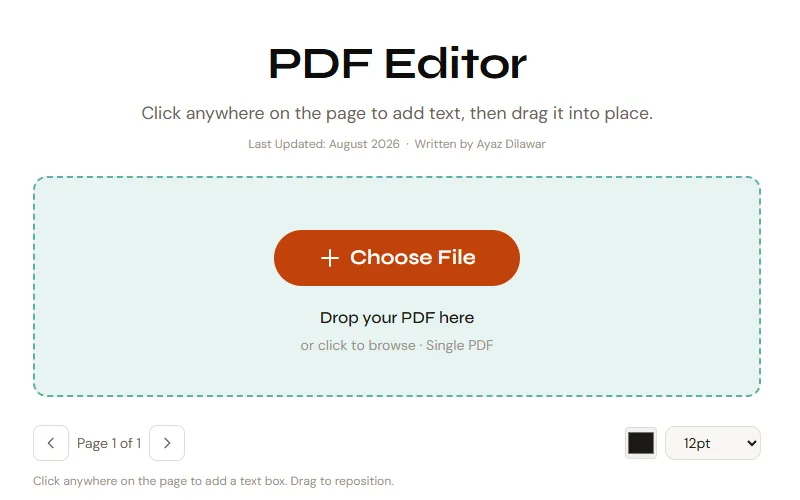
Be clear about what it does not do: it does not edit or delete the text already in the PDF, and text inside a scanned image stays uneditable. The original file is never overwritten, and you download a separate edited copy.
If you try to save without adding any text, you will see the message "Add some text first." If you see "Failed to save PDF," try unlocking the file (if you know the password) or repairing it first, then edit it again.
Option 2: Edit the original and export again
For anything more than a small addition, the best route is usually the source file. If the PDF was exported from Word, Google Docs or a design program, open that original, make your changes there and export a new PDF. You keep full control of the layout and nothing needs to be rebuilt.
If you do not have the original, ask whoever created the PDF. It is often the fastest route, even if it takes a short wait.
Option 3: Convert to Word and edit
You can convert a PDF to a Word document, edit it there and save it as a new PDF. Our guide on converting a PDF to Word covers the process. Expect to check the result: complex layouts, tables and unusual fonts may not carry over perfectly, so read the converted file against the original before you rely on it.
Option 4: Use OCR for scanned pages
If the PDF is a scan, you cannot edit it directly. PDFly's OCR PDF can read the text out of up to 6 pages, then you can copy it into a document and rebuild the page. It is not a local tool: each page is rendered as an image in your browser and sent to PDFly's server, which forwards it to Google Gemini to read. The result is plain text on screen with a Copy button, not a searchable PDF and not an editable file, and there is no language setting. Clear printed text works best; handwriting is less reliable. For longer files, split them first with Split PDF.
Option 5: Add a correction beside old text
When you cannot change existing text, a workaround is to place a new text box with the corrected wording next to the old text, or in a blank area such as a line on a form. Keep in mind that adding text does not hide or remove the original underneath. The new text box has no background, so in our test the old words stayed fully visible behind the new text, and they remain in the file where they can still be selected and copied.
That makes this workaround unsuitable for anything sensitive. If you need information removed, not just corrected, read our guide on redacting a PDF first.
Option 6: Unlock a protected PDF
If the file is protected and you know the password, PDFly's Unlock PDF removes the protection so other tools can work with it. It does not crack or bypass passwords. If you do not have the password, ask the file's owner for an editable version instead.
What to try, in order
- Decide what you need: add new text, or change existing text.
- For small additions, add a text box and download the edited copy.
- For real rewrites, edit the original source and export a new PDF.
- No source? Try converting to Word, and check the result carefully.
- For scans, use OCR on up to 6 pages and rebuild the page in a document.
- If the file is protected, unlock it only if you know the password.
Need to add text to a PDF?
Runs in your browser. Your original file is not overwritten. No signup, no watermark.
Open PDF EditorFrequently Asked Questions
Why can't I edit the text in my PDF?
PDFs are fixed-layout files, and in most of them text is stored in positioned pieces rather than flowing paragraphs. The file may also be a scan, protected, or flattened into images. Editing is easiest in the original document the PDF came from.
Can PDFly's PDF Editor change existing text?
No. It adds new text boxes on top of the page. It does not edit or delete text that is already in the PDF, and the original file is not overwritten.
Does adding a text box hide the old text?
No. The new text box has no background, so the old text stays visible behind it and stays in the file, where it can still be copied. Do not rely on this for sensitive information.
Can I edit a scanned PDF?
Not directly, because the words are part of a picture. You can use OCR to extract the text, copy it into a document, and rebuild the page from there.
What if the PDF is password-protected?
If you know the password, an unlock step removes the protection so you can work on the file. If you do not know it, ask the owner for an editable copy.